
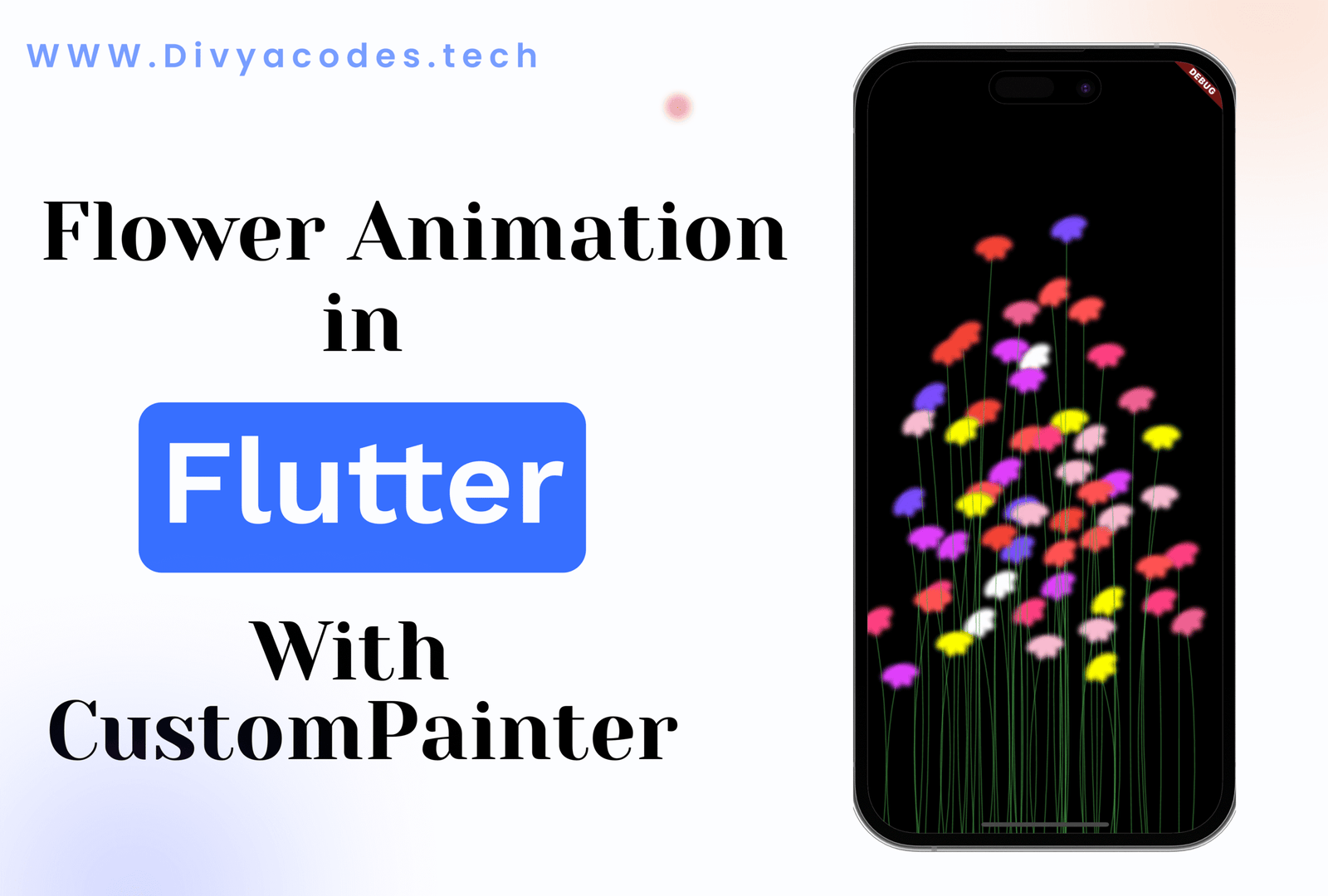
Flutter provides powerful low-level APIs that allow developers to draw and animate custom visuals directly on the canvas. In this tutorial, I built an interactive flower animation in Flutter using CustomPainter. Each flower appears where the user taps and gently sways, creating a smooth and organic animation.
This example demonstrates how to use Flutter Canvas, gradients, animations, and gesture detection without relying on third-party libraries.
Why Use CustomPainter in Flutter?
CustomPainter gives full control over rendering. It is ideal when:
- You need custom shapes or animations
- Widgets are too limiting
- Performance matters
- You want creative visuals like charts, games, or effects
In this project, CustomPainter is used to draw flower stems and petals directly on the canvas.
Flutter App Structure:
The app starts with a simple MaterialApp and a stateful widget. The background color is set to black to enhance contrast with colourful animated flowers.
void main() => runApp(const MaterialApp(home: DrawFlowers()));Handling Tap Interaction:
Flutter’s GestureDetector listens for tap events and adds a flower at the tapped position.
onTapDown: (details) => _addFlower(details.localPosition),Each tap creates a new flower with random colors and animation speed, making the UI feel dynamic and interactive.
Managing Flower Data:
Every flower stores its position, color palette, and sway speed.
class FlowerData {
  final Offset position;
  final List<Color> colors;
  final double swaySpeed;
}
This separation of data keeps the painting logic clean and scalable.
Creating Smooth Flutter Animations:
An AnimationController runs continuously and drives the sway motion.
_controller = AnimationController(
  vsync: this,
  duration: const Duration(seconds: 5),
)..repeat(reverse: true);
The animation value is combined with a sine function to simulate natural movement.
Drawing Stems Using Canvas:
The stem is drawn using a curved path with quadraticBezierTo, giving it a realistic bend.
Path path = Path();
path.moveTo(flower.position.dx, size.height);
path.quadraticBezierTo(
  flower.position.dx - sway,
  ...
  top.dx,
  top.dy,
);
This technique is commonly used in Flutter Canvas drawing for organic shapes.
Drawing Glowing Petals:
Each flower contains multiple petals:
- Drawn as ovals
- Rotated around the center
- Filled with linear gradients
- Softened using blur for a glow effect
canvas.drawOval(
  Rect.fromCenter(center: const Offset(10, 0), width: 25, height: 15),
  petalPaint,
);
This approach creates visually appealing effects with minimal code.
Using Color Palettes for Variation:
Random flower color palettes inspired by roses, sunflowers, orchids, and cherry blossoms keep the UI visually rich and prevent repetition.
Flutter Canvas Flower Animation – Complete Code:
import 'dart:math';

import 'package:flutter/material.dart';

void main() => runApp(const MaterialApp(home: DrawFlowers()));

class DrawFlowers extends StatefulWidget {
  const DrawFlowers({super.key});

  @override
  State<DrawFlowers> createState() => _DrawFlowersState();
}

class _DrawFlowersState extends State<DrawFlowers>
    with SingleTickerProviderStateMixin {
  final List<FlowerData> _flowers = [];
  late AnimationController _controller;

  @override
  void initState() {
    super.initState();
    _controller = AnimationController(
      vsync: this,
      duration: const Duration(seconds: 5),
    )..repeat(reverse: true);
  }

  void _addFlower(Offset position) {
    setState(() {
      _flowers.add(
        FlowerData(
          position: position,
          colors: _getRandomPalette(),
          swaySpeed: Random().nextDouble() * 2 + 1,
        ),
      );
    });
  }

  List<Color> _getRandomPalette() {
    List<List<Color>> palettes = [
      // Rose 🌹
      [Colors.pinkAccent, Colors.redAccent],

      // Sunflower 🌻
      [Colors.yellowAccent, Colors.orangeAccent],

      // Lavender 💜
      [Colors.purpleAccent, Colors.deepPurple],

      // Tulip 🌷
      [Colors.redAccent, Colors.pink],

      // Lotus 🌸
      [Colors.pink.shade300, Colors.pinkAccent],

      // Daisy 🌼
      [Colors.white, Colors.yellowAccent],

      // Orchid 🌺
      [Colors.deepPurpleAccent, Colors.purpleAccent],

      // Hibiscus 🌺
      [Colors.red, Colors.deepOrangeAccent],

      // Cherry Blossom 🌸
      [Colors.pink.shade100, Colors.pink.shade300],
    ];

    palettes.shuffle();
    return palettes.first;
  }

  @override
  Widget build(BuildContext context) {
    return Scaffold(
      backgroundColor: Colors.black,
      body: GestureDetector(
        onTapDown: (details) => _addFlower(details.localPosition),
        child: Stack(
          children: [
            AnimatedBuilder(
              animation: _controller,
              builder: (context, child) {
                return CustomPaint(
                  painter: FlowerPainter(
                    flowers: _flowers,
                    anim: _controller.value,
                  ),
                  size: Size.infinite,
                );
              },
            ),
          ],
        ),
      ),
    );
  }
}

class FlowerData {
  final Offset position;
  final List<Color> colors;
  final double swaySpeed;
  FlowerData({
    required this.position,
    required this.colors,
    required this.swaySpeed,
  });
}

class FlowerPainter extends CustomPainter {
  final List<FlowerData> flowers;
  final double anim;
  FlowerPainter({required this.flowers, required this.anim});

  @override
  void paint(Canvas canvas, Size size) {
    for (var flower in flowers) {
      // Calculate sway based on sine wave
      double sway = sin(anim * pi * flower.swaySpeed) * 15;
      Offset top = Offset(flower.position.dx + sway, flower.position.dy);

      // 1. Draw Stem (Slender Green Line)
      final stemPaint =
          Paint()
            ..color = const Color(0xFF4CAF50).withOpacity(0.5)
            ..style = PaintingStyle.stroke
            ..strokeWidth = 1.2;

      final path = Path();
      path.moveTo(flower.position.dx, size.height); // Bottom
      path.quadraticBezierTo(
        flower.position.dx - sway,
        size.height - (size.height - top.dy) * 0.5,
        top.dx,
        top.dy, // Top
      );
      canvas.drawPath(path, stemPaint);

      // 2. Draw Glowing Petals (Multiple ovals with gradients)
      for (int i = 0; i < 4; i++) {
        final petalPaint =
            Paint()
              ..shader = LinearGradient(
                colors: flower.colors,
                begin: Alignment.topLeft,
                end: Alignment.bottomRight,
              ).createShader(Rect.fromCircle(center: top, radius: 20));

        canvas.save();
        canvas.translate(top.dx, top.dy);
        canvas.rotate((i * 45) * pi / 180 + (sway * 0.02));

        // Draw soft, blurry petals using MaskFilter for glow
        petalPaint.maskFilter = const MaskFilter.blur(BlurStyle.normal, 3);

        canvas.drawOval(
          Rect.fromCenter(center: const Offset(10, 0), width: 25, height: 15),
          petalPaint,
        );
        canvas.restore();
      }
    }
  }

  @override
  bool shouldRepaint(FlowerPainter oldDelegate) => true;
}
Final Output:
The final Flutter animation:
- Responds instantly to user taps
- Animates smoothly using sine waves
- Uses CustomPainter for high performance
- Creates an engaging and artistic user experience
This is a great example of how Flutter can be used beyond standard UI components.
Conclusion:
Building animations with Flutter CustomPainter helps developers understand rendering, performance, and animation fundamentals. This flower animation project is a practical and creative way to explore Flutter Canvas drawing and gesture-based interaction.